Change Samsung CSC: Compatibility and Feature Limits
Samsung Galaxy firmware uses regional and carrier configuration codes commonly called CSCs. A CSC can influence dialer configuration, carrier settings, applications, and update channels, but it is only one input. Hardware model, firmware branch, sales code, SIM/carrier provisioning, account region, payment eligibility, and local law can also control a feature.
Some SamFw Tool builds expose a CSC-change function over Samsung diagnostic interfaces. The procedure does not inherently require root, but this article has not verified every tool/model/build combination or guaranteed its effect on the Knox warranty bit, data, payment apps, calls, or future updates. Make a verified backup and record the original service-provider software version before changing anything.
Understanding the Samsung CSC Framework
The Country Specific Code is embedded directly within Samsung’s official firmware packages. Modern Galaxy devices generally ship with unified multi-CSC packages (most notably OXM for international models, OWO for Latin America, and OYM for North American unlocked units).
A multi-CSC contains configuration profiles for dozens of countries within a single software build. When a phone boots, it evaluates the SIM card or internal configuration registers to determine which regional settings block to apply.
| Setting domain | Possible CSC relationship; verify on the exact model/build |
|---|---|
| Dialer Features | Native two-way call recording without external application overlays |
| Financial Services | Samsung Pay / Samsung Wallet availability and local banking compliance |
| Camera Settings | Hardware shutter sound toggle availability in accordance with local privacy laws |
| Network Optimization | 5G Standalone (SA) band priority, VoLTE, and VoWiFi provisioning |
| Update Release Cycles | Regional OTA firmware rollout schedules and staging queues |
Switching within a multi-CSC package may expose a different configuration, but it does not guarantee a feature or preserve the same OTA schedule. A target CSC absent from the installed firmware can require a different official firmware package and may trigger a reset.
Regional codes commonly discussed
The table below records commonly reported associations, not entitlements. Verify the exact model, firmware, carrier, Samsung account/payment region, and local recording law before relying on one.
| CSC Code | Country / Region | Native Call Recording | Samsung Wallet | Characteristics |
|---|---|---|---|---|
| INS | India | Commonly reported; verify | Eligibility also depends on account/device | Confirm installed multi-CSC and local law |
| THL | Thailand | Commonly reported; verify | Eligibility also depends on account/device | Confirm installed multi-CSC and local law |
| XID | Indonesia | Commonly reported; verify | Eligibility also depends on account/device | Carrier features can differ |
| KSA | Saudi Arabia | Commonly reported; verify | Eligibility also depends on account/device | Carrier features can differ |
| XXV | Vietnam | Commonly reported; verify | Eligibility also depends on account/device | Confirm installed multi-CSC and local law |
| EUX | Europe (Unified) | Model/build dependent | Eligibility also depends on account/device | OTA timing and features vary by build |
| XAA | United States (Unlocked) | Model/build dependent | Eligibility also depends on account/device | Carrier provisioning still applies |
For a comprehensive index of regional codes across global Galaxy models, consult our complete Samsung CSC directory.
Required Software and Preparation
Ensure your environment is configured with the official device drivers and maintenance utilities before starting:
| Tool | Purpose | Source Reference |
|---|---|---|
| SamFw Tool | Utility for sending AT commands and switching CSC entries | SamFw Tool Download |
| Samsung Android USB Drivers | Provides virtual modem and serial port communication | Samsung USB Drivers Guide |
| Samsung Smart Switch | Workstation backup utility for securing user data | Official Samsung Portal |
Step-by-Step CSC Change Guide
Use these steps only after confirming that the target code exists in the installed multi-CSC package and that a procedure is documented for the exact tool, model, and firmware. A screenshot from another model is not evidence of compatibility.
1. Verify device model and multi-CSC compatibility
Open Settings on your Samsung phone, navigate to About phone, and tap Software information. Locate the entry titled Service provider software version. Note the current three-letter codes displayed (e.g., EUX/-/EUX/EUX). Ensure your target code resides within the same firmware stream to avoid requiring a full stock firmware reflash via Odin.
2. Install Samsung USB drivers and configure computer environment
Download and install the official Samsung Android USB Drivers on your Windows PC. Extract the SamFw Tool archive to a folder on your primary drive (such as C:\SamFw). Right-click the application executable and choose Run as administrator to ensure proper access to the system serial communication stack.
3. Enable USB debugging and adjust Auto Blocker security
On your phone, return to Software information and tap Build number seven consecutive times until the developer confirmation message appears.
Navigate to Settings > Developer options and toggle USB debugging to On.
If you are using One UI 6, 6.1, or 7, Samsung’s Auto Blocker feature may prevent external USB commands:
- Go to Settings > Security and privacy > Auto Blocker.
- Temporarily toggle Auto Blocker to Off.
- If prompted, confirm your security PIN or biometric authentication.
4. Execute CSC change in SamFw Tool
Connect your phone to the PC using a verified USB data cable. Ensure the phone screen remains unlocked, and accept the Allow USB debugging prompt on the screen by checking Always allow from this computer.
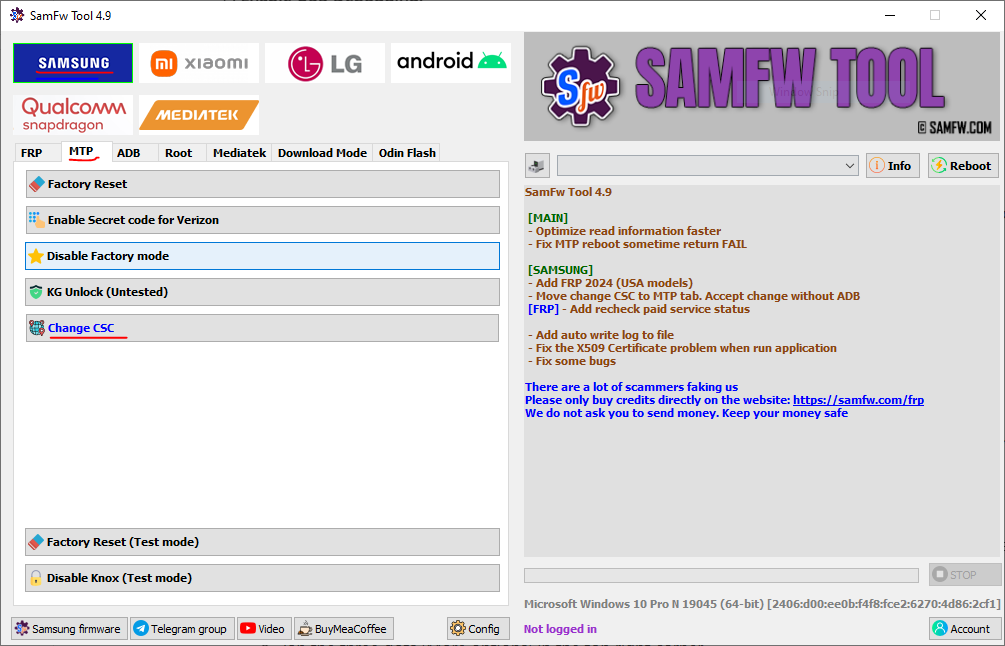
SAMFW Tool Change CSC on Samsung via MTP/ADB Screen
In SamFw Tool:
- Navigate to the Samsung tab, then select the MTP or ADB sub-tab.
- Click Change CSC.
- From the list of available regional codes, select your target designation (such as INS or THL).
- Click Apply only if the exact combination is documented. Save the tool log and stop on an unsupported-code, reset, or communication warning.
5. Reboot and verify regional features
The recorded workflow initiates a reboot. A completion message is not proof that the requested CSC or feature was applied.
After the device restarts into One UI:
- Open the stock Phone dialer application.
- Tap the three dots in the top-right corner and select Settings.
- Record whether the Record calls menu exists; do not assume it will appear or that recording is lawful in the user’s location.
- Return to Settings > Security and privacy > Auto Blocker and re-enable device security if desired.
Also verify calls, SMS, mobile data, VoLTE/VoWiFi, OTA status, Samsung Wallet/payment eligibility, the Knox status shown by the device, and the service-provider software version. Restore Auto Blocker after testing. The later Samsung CSC changer guide focuses on diagnosis and rollback; the call-recording guide covers recording-specific checks.
Video Demonstrations
These videos are recorded demonstrations. They do not certify another model, firmware, tool build, regional entitlement, or outcome: