Google Pixel Technicians Toolkit V3 – Professional Repair Tool
Google Pixel Technicians Toolkit V3 is a purpose-built Windows maintenance suite engineered to streamline hardware diagnostics, bootloader state management, and partition recovery across Google Pixel smartphones. In professional workshop environments, diagnosing corrupted cellular basebands, flashing raw factory firmware, and toggling active A/B boot slots typically requires maintaining multiple command terminals and manual Fastboot scripts.
Toolkit V3 integrates these Android SDK platform operations into a cohesive graphical dashboard, eliminating syntax errors while providing direct hardware telemetry and automated device recovery features.
Technical Overview and Core Architecture
Google Pixel Technicians Toolkit V3 is developed on Microsoft .NET 8.0, interacting directly with low-level Android Debug Bridge (ADB) and Fastboot protocol daemons.
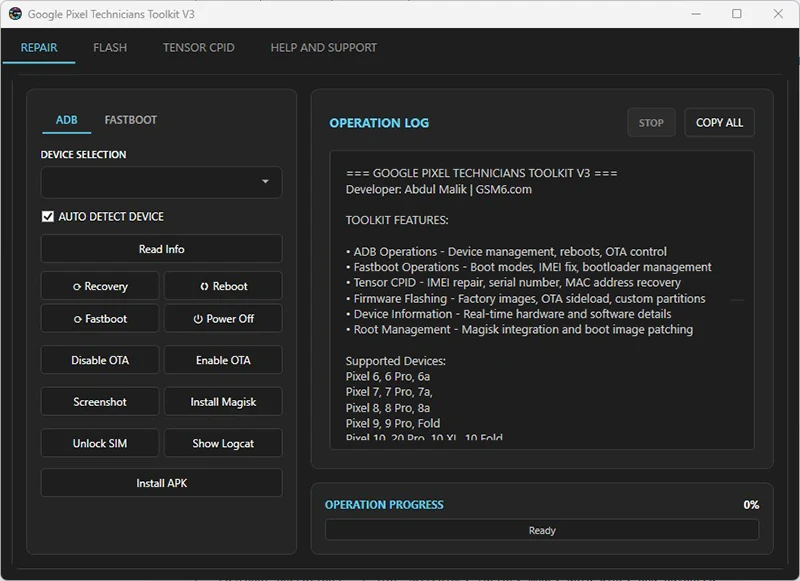
Functional Modules
| Module | Operational Focus | Capabilities |
|---|---|---|
| Device Diagnostics | ADB & Fastboot Telemetry | Model verification, battery health, current slot (A/B), serial readout |
| Firmware Flashing | Google Factory Packages | Full image flashing, OTA sideloading, raw partition injection |
| Bootloader Tools | Partition Security | One-click OEM lock/unlock execution, recovery reboot, fastbootd toggle |
| Cellular Recovery | Tensor Identity Blocks | Devinfo partition restoration and CPID carrier policy regeneration |
For standalone baseband repairs on Google Pixel 7, 8, 9, or Fold series, consult our dedicated Google Pixel IMEI repair tool.
Hardware and Model Compatibility
Google Pixel Technicians Toolkit V3 supports Google Tensor hardware across multiple generations:
| Device Family | Models | Hardware Codename | Feature Support Level |
|---|---|---|---|
| Pixel 6 Series | Pixel 6, 6 Pro, 6a | Oriole, Raven, Bluejay | Full Suite (Flashing, Root, CPID Repair) |
| Pixel 7 Series | Pixel 7, 7 Pro, 7a | Panther, Cheetah, Lynx | Diagnostics, Fastboot, Factory Flashing |
| Pixel 8 Series | Pixel 8, 8 Pro, 8a | Shiba, Husky, Akita | Diagnostics, Fastboot, Factory Flashing |
| Pixel 9 Series | Pixel 9, 9 Pro, 9 Pro XL, Fold | Tokay, Caiman, Komodo, Comet | Diagnostics, Fastboot, Slot Management |
| Foldable / Tablet | Pixel Fold, Pixel Tablet | Felix, Tangorpro | Diagnostics, Factory Flashing |
Download: Google Pixel Technicians Toolkit V3
Obtain the installer from the linked GSM6 release page and verify its signature or published hash before running it. This audit did not independently authenticate the binary or establish a complete device/build support matrix.
Release Specifications
| Specification | Details |
|---|---|
| Software Name | Google Pixel Technicians Toolkit V3 |
| Build Version | v3.8.04.2026 |
| Installer Size | 24.1 MB |
| Target OS | Windows 10 & Windows 11 (64-bit) |
| Framework Dependency | Microsoft .NET Desktop Runtime 8.0+ |
| SHA-256 Checksum | ff28052470858c5201304b1ea7f2326a58ac7ebc827fe78fcd84d82d0b660087 |
- Primary Direct Download: Download Setup Executable (GSM6 DL1)
- Secondary Mirror: Download Setup Mirror (GSM6 Assets)
- Advanced Edition: For our next-generation unified platform, check the GSM6 Pixel Tool Pro.
Companion Drivers
Verify your computer’s USB communication interfaces:
- Install the latest Samsung and Android USB Drivers or Google USB Driver.
- If you need command-line platform binaries, review our Android Platform Tools guide.
Step-by-Step Operating Guide
1. Download and Install the Toolkit Package
Install the software on your Windows workstation.
- Download the setup executable from the download section above.
- Right-click
GooglePixelTechniciansToolkitV3.8.04.2026_Setup.exeand select Run as administrator. - Follow the installation wizard prompts to install the core binaries and desktop shortcuts.
2. Activate via Daily Verification Token
The toolkit employs a daily token mechanism to verify server connectivity and protect the utility from unauthorized commercial repackaging.
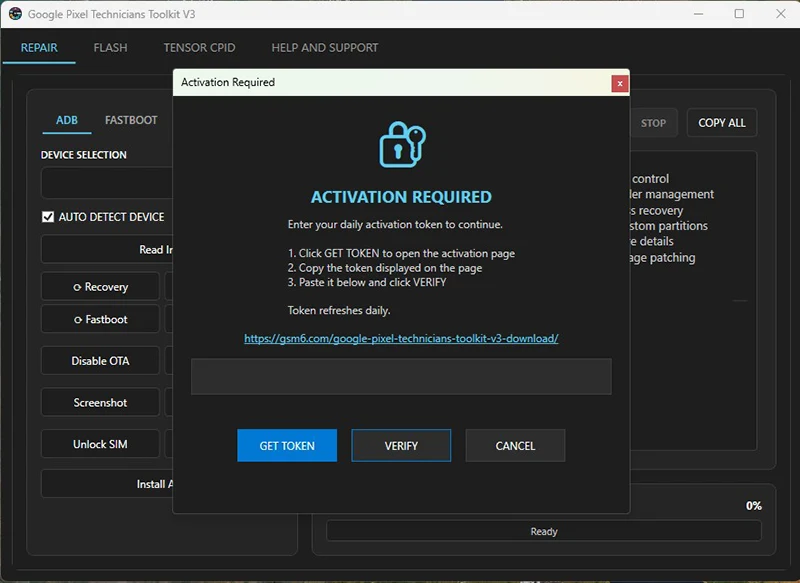
- Launch Google Pixel Technicians Toolkit V3.
- The initial startup screen will display the token prompt dialog.
- Obtain the current daily token from the official GSM6 portal.
- Paste the token into the input field and click Verify to initialize the main dashboard.
3. Connect Pixel Device and Verify Drivers
Establish communication between the handset and the host computer.
- On your Google Pixel, enable Developer options by tapping Build number 7 times under Settings > About phone.
- Enable USB debugging inside Developer options.
- Connect the smartphone to your PC using a reliable USB Type-C cable.
- When the Allow USB debugging? RSA fingerprint prompt displays on the phone screen, select Always allow and tap Allow.
4. Read Diagnostic Telemetry and Device State
Inspect device identity parameters before performing firmware modifications.
- Navigate to the Device Management tab.
- Click Read Info to fetch the device board codename, active Android OS version, build timestamp, and current active slot (
_aor_b). - Confirm that the hardware parameters match your expectations before proceeding.
5. Execute Firmware Flashing or Partition Operations
Perform your intended maintenance routine through the dedicated tabs.
- Factory Image Flashing: Switch to the Flash tab, select the extracted official factory firmware directory, and click Flash Factory Firmware.
- Bootloader Management: In the Fastboot module, utilize one-click triggers to lock, unlock, or switch boot slots.
- Partition Restoration: For Tensor G1 IMEI repair, navigate to the repair options, verify the original device IMEI from the retail packaging, and write the devinfo binary over fastboot.
Video Walkthrough
Watch the complete installation, token activation, and device flashing workflow in this tutorial video:
Diagnostics and Operational Notes
- Activation Error
Token Invalid: Tokens expire daily at 00:00 UTC. Ensure your workstation clock is synchronized to internet time and verify you copied the latest key. - Application Halts on Launch: Confirm that the Microsoft .NET Desktop Runtime 8.0 (x64) is installed on your Windows system.
- Waiting for Fastboot: If operations stall when switching from ADB to Fastboot, check Device Manager to verify that the Google Bootloader Interface driver is bound without yellow warning icons.