Pixel 3–5 QCN Archives: Diagnosis and Restoration Limits
On Qualcomm-powered Google Pixel smartphones (Pixel 3 through Pixel 5a), radio frequency calibration parameters and hardware identities reside within protected non-volatile (NV) memory structures across the device’s Encrypted File System (EFS) partitions. When an interrupted firmware flash, bad partition format, or root experimentation corrupts this data, the phone frequently exhibits symptoms such as “Baseband Version Unknown”, “Invalid IMEI”, or permanent cellular “No Service” alerts.
Some diagnosed NV faults can involve a Qualcomm Calibration Network (QCN) backup, but “No Service,” unknown baseband, or invalid identity does not prove that a QCN write is the correct repair. A usable restoration source should come from the same physical device or an authorized calibration procedure.
Understanding QCN Architecture on Qualcomm Pixel Hardware
The modem subsystem on Snapdragon-powered Google Pixel devices relies on an array of calibration blocks stored within the modemst1, modemst2, and fsg partitions:
- RF Band Calibration: Tables defining transmit/receive power amplification across 2G, 3G, 4G LTE, and sub-6GHz 5G frequencies.
- Transceiver Offsets: Hardware-specific timing alignment values that synchronize the baseband processor with the cellular antenna switch matrix.
- Hardware Enclave Registers: Pointers holding factory device identities, including IMEI values and Bluetooth/Wi-Fi MAC assignments.
Important Architecture Note: This restoration workflow applies strictly to legacy Qualcomm Snapdragon Pixels (Pixel 3 through 5a). Beginning with the Pixel 6 series, Google transitioned to proprietary Google Tensor processors paired with Samsung Exynos/Shannon baseband modems, which do not utilize Qualcomm QCN files.
Google Pixel QCN Files Download Archive
The links below are unauthenticated historical archives. They are retained for research and comparison; matching a marketing model or codename does not make a donor file safe to write.
[!WARNING] Donor QCN files contain device-specific RF calibration and may contain unique identifiers. Do not write or hex-edit a donor file as a shortcut. Prefer a verified backup from the same physical phone or an authorized service calibration procedure that preserves its factory identity.
Writing a calibration archive from an incompatible board revision will introduce mismatched RF power tables, causing persistent radio instability:
| Google Pixel Model | Board Codename | Processor Platform | Archive Size | Calibration Source |
|---|---|---|---|---|
| Pixel 3 | blueline | Snapdragon 845 | ~2 MB | Download QCN File |
| Pixel 3 XL | crosshatch | Snapdragon 845 | ~2 MB | Download QCN File |
| Pixel 3a | sargo | Snapdragon 670 | ~2 MB | Download QCN File |
| Pixel 3a XL | bonito | Snapdragon 670 | ~2 MB | Download QCN File |
| Pixel 4 | flame | Snapdragon 855 | ~2 MB | Download QCN File |
| Pixel 4 XL | coral | Snapdragon 855 | ~2 MB | Download QCN File |
| Pixel 4a | sunfish | Snapdragon 730G | ~2 MB | Download QCN File |
| Pixel 4a 5G | bramble | Snapdragon 765G | ~2 MB | Download QCN File |
| Pixel 5 | redfin | Snapdragon 765G | ~2 MB | Download QCN File |
| Pixel 5a | barbet | Snapdragon 765G | ~2 MB | Download QCN File |
Required Toolchain and Workstation Setup
Before attempting communication with the modem, configure your computer with the appropriate maintenance utilities:
| Tool | Role | Reference Guide |
|---|---|---|
| QPST Suite (QFIL) | Qualcomm diagnostic software for read/write NV operations | QPST Tool Setup |
| Qualcomm USB Drivers | Provides virtual COM port emulation for diagnostic channels | Qualcomm Drivers Guide |
| Android Platform Tools | Command-line binaries for issuing root property overrides | Platform Tools Setup |
Step-by-Step QCN Restoration Guide
Use these steps as a diagnostic outline. Continue to a write only when the exact fault, supported Pixel/build, running DIAG interface, same-device backup, and recovery plan are documented.
1. Download matching model QCN file and toolchain
Preserve the linked archive only for comparison. Locate and verify a QCN backup created from the same physical device. Install the required driver and QPST release on a Windows workstation, and record package provenance before connecting the phone.
2. Enable USB debugging and root terminal access
On your Pixel, navigate to Settings > About phone, tap Build number 7 times to enable Developer options, then toggle USB debugging to On. Connect the phone to your PC and verify connection using adb devices.
Because retail Pixel firmware intentionally restricts access to Qualcomm diagnostic interfaces, temporary root access (via Magisk or a patched boot image) is required to expose the diagnostic port.
3. Engage Qualcomm diagnostic mode via ADB shell
Open an elevated command prompt on your PC and issue the following commands to redirect USB communication to the diagnostic endpoints:
adb shell
su
setprop sys.usb.config diag,adb
Inspect Windows Device Manager under Ports (COM & LPT).
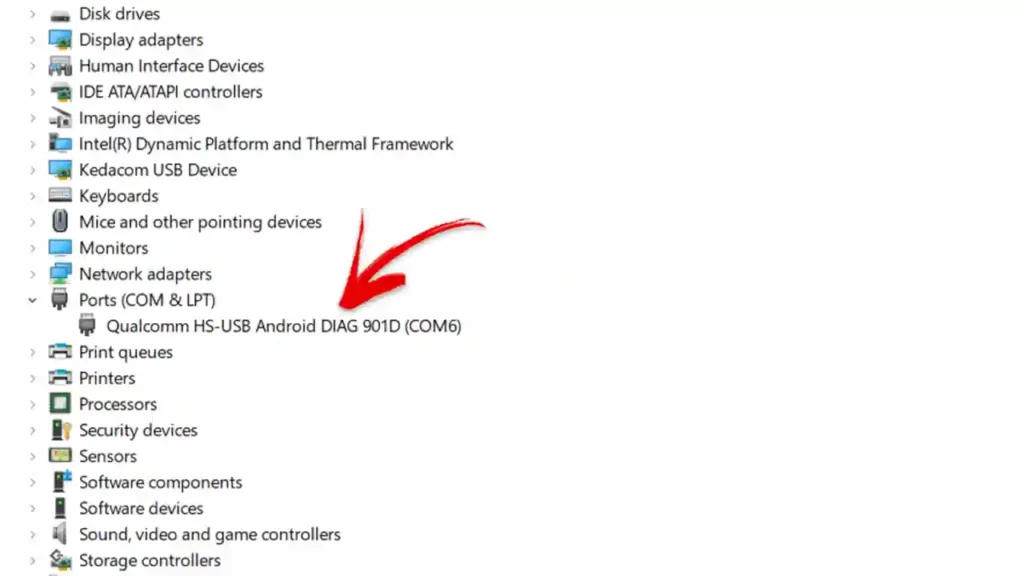
Qualcomm Diagnostic Port in Device Manager
A device titled Qualcomm HS-USB Android DIAG must appear with an assigned COM port number (e.g., COM3, COM8).
[!NOTE] Do not confuse the Diagnostic (DIAG) port with Qualcomm HS-USB QDLoader 9008. The 9008 port is Emergency Download (EDL) mode used for raw unbrick flashing, not for QCN operations. You must be in a booted Android state with the DIAG port exposed.
4. Back up active modem parameters in QPST QFIL
Launch QFIL from the QPST application suite:
- Confirm that QFIL displays the detected diagnostic COM port in the top bar.
- Navigate to the top navigation bar and select Tools > QCN Backup Restore.
- Under the Backup QCN tab, click Browse, designate a safe local folder, and click Backup QCN.
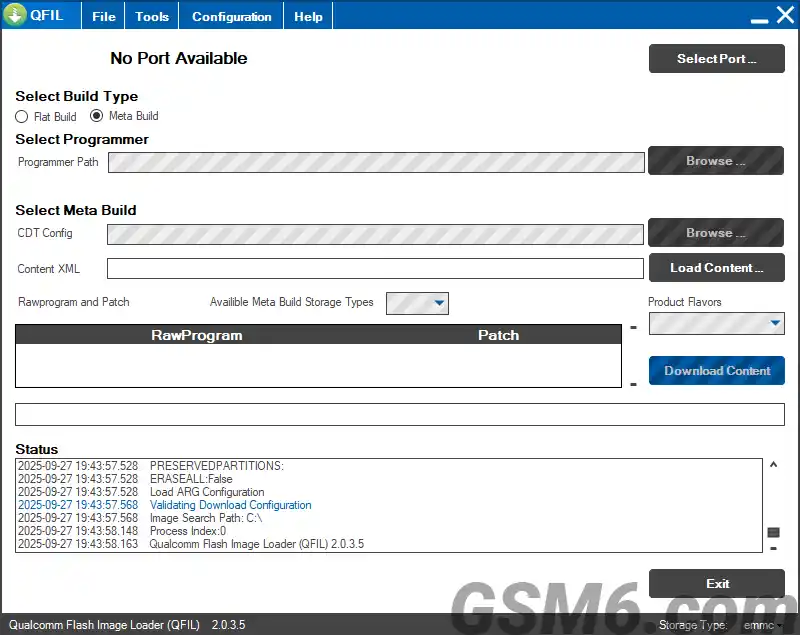
QFIL Tool Interface
Allow the backup process to finish until the status window outputs Backup QCN Succeeded. Even corrupted partitions may preserve localized calibration parameters useful for recovery.
5. Restore calibration archive and verify network status
In the same QCN Backup Restore window, switch to the Restore QCN tab:
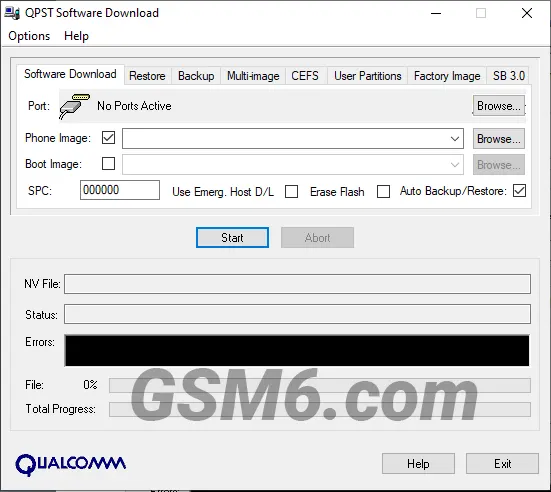
QPST Download Tool
- Click Browse and select only a verified backup from this physical device or an authorized service-generated calibration file. Do not select or modify a donor archive to manufacture identity data.
- Click Restore QCN. The tool streams the non-volatile items directly into the device’s modem registers.
- Wait for the status log to display Restore QCN Succeeded.
- Disconnect the phone from the PC and restart the device.
Upon reboot, record the baseband build, factory identifier, SIM registration, calls, data, Wi-Fi/Bluetooth addresses, and the QPST log. A “Restore QCN Succeeded” message confirms tool execution only; it does not establish correct RF calibration or a durable network repair.
Video Walkthrough
Watch this recorded service session detailing root diagnostic preparation and QCN restoration on Qualcomm Pixel hardware: