Pixel 6 Series IMEI/CPID Tool: Evidence and Repair Limits
An IMEI of zero, an unknown baseband, and loss of cellular registration are related symptoms but do not establish one cause. Before writing any partition, record the exact Pixel model, installed build, bootloader state, baseband value, prior flash or repair, and radio logs.
The third-party tool shown here generates a file named devinfo.img, but this audit did not authenticate its publisher, 2025.1.0 version, templates, partition assumptions, or supported firmware matrix. The workflow is a recorded experiment, not proof that every Pixel 6-family fault requires or accepts this write.
Technical Overview and Requirements
Tensor devices do not use the same QCN workflow as legacy Qualcomm Pixels. The precise role and safe contents of the generated image must be verified for the exact device and build. A Fastboot OKAY result confirms that a command was accepted; it does not prove correct identity, modem calibration, carrier registration, persistence, or safe OTA behavior.
| Requirement | Details | Importance |
|---|---|---|
| Target Device | Google Pixel 6, Pixel 6a, or Pixel 6 Pro | Mandatory |
| Host PC | Windows 10 or Windows 11 (64-bit recommended) | Mandatory |
| Fastboot Utilities | Current Android SDK Platform-Tools | Essential |
| USB Drivers | Google USB Driver properly bound in Device Manager | Essential |
| Hardware Cable | USB Type-C data cable connected directly to PC port | Critical |
| Original IMEI | Original 15-digit number printed on SIM tray or retail box | Mandatory |
Important Advisory: Modifying partition blocks to write an arbitrary or borrowed IMEI is illegal under telecommunications regulations in many jurisdictions. Technicians must only restore the device’s original manufacturer-assigned identification number.
For general background on Google Pixel cellular recovery tools, see our Google Pixel IMEI repair guide.
Download: Google Pixel 6 Series CPID Repair Tool
The MEGA archive is a third-party package. A reachable link does not authenticate the publisher or binary. Verify a trusted hash/signature and an exact release support record before opening it; otherwise do not run it.
Utility Specifications
| Specification | Details |
|---|---|
| Tool Name | Google Pixel 6 Series CPID Repair Tool |
| Claimed Version | 2025.1.0; not independently authenticated |
| Supported OS | Windows 7, 8, 10, 11 (32-bit & 64-bit) |
| Archive Size / License | Not independently verified during this review |
| Archive Password | gsm6.com |
| Target Devices | Pixel 6, Pixel 6a, Pixel 6 Pro |
- Utility Archive: Download Google Pixel 6 CPID Tool (MEGA)
- Archive Extraction Password:
gsm6.com
Companion Tools and Drivers
Before opening the tool, ensure your PC has the necessary fastboot and USB driver stack:
- Install the Samsung and Android USB Drivers or Google USB Driver.
- Download the official Android Platform Tools to ensure Fastboot commands execute reliably.
Step-by-Step Restoration Procedure
1. Unlock the Pixel Bootloader
Google Pixel security blocks partition flashing over USB unless the device bootloader is unlocked.
Warning: Unlocking the bootloader initiates a factory reset that permanently deletes all photos, downloaded files, and app data stored on the handset.
- On your Pixel, navigate to Settings > About phone and tap Build number seven consecutive times until developer mode activates.
- Go to Settings > System > Developer options and toggle OEM unlocking and USB debugging to ON.
- Power down the device completely.
- Press and hold Power + Volume Down until the Fastboot menu appears on the display.
- Connect your Pixel to the computer using a reliable USB-C cable.
- Open your platform-tools terminal on the PC and execute:
fastboot flashing unlock - Use the volume rocker on the handset to select Unlock the bootloader, then press the power button to confirm. The phone will perform a full memory wipe and reboot.
For an exhaustive walkthrough of bootloader prerequisites, consult our guide on how to unlock the bootloader on Google Pixel.
2. Generate Modified devinfo.img With the Tool
Once the bootloader is unlocked, continue only if the exact tool release, device, build, template source, and recovery image have been verified. Preserve the original partition before creating or writing any replacement.
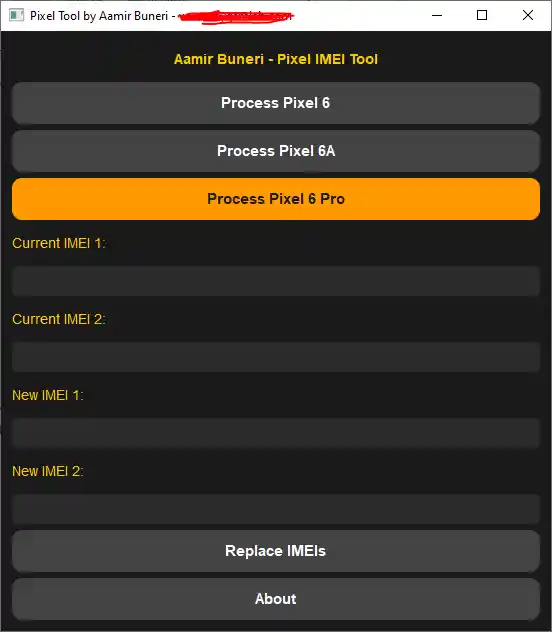
- Extract the downloaded CPID utility using the password
gsm6.com. - Launch the utility executable on Windows.
- From the model selector drop-down, select your precise variant: Pixel 6, Pixel 6a, or Pixel 6 Pro.
- Carefully type the device’s original 15-digit IMEI located on the physical SIM tray or factory packaging into the IMEI field.
- Click Replace IMEIs to trigger partition image generation.
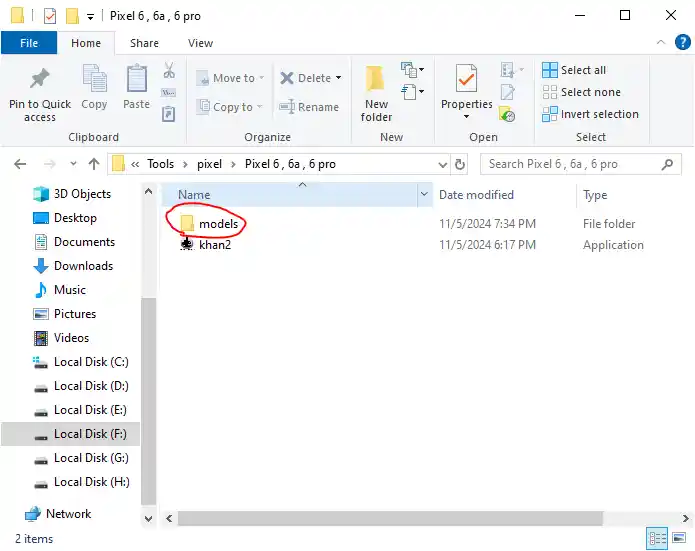
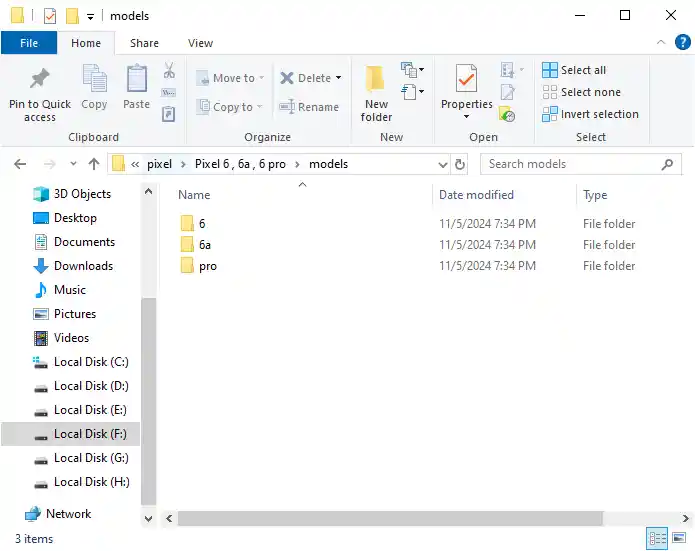
3. Flash devinfo.img in Fastboot Mode
The commands below document the recorded workflow. They are not authorization to flash an unauthenticated generated image. Confirm the target partition and image contents against exact device documentation first.
- Place the phone back into Fastboot mode by powering off and holding Power + Volume Down.
- Connect the phone to your computer and verify detection:
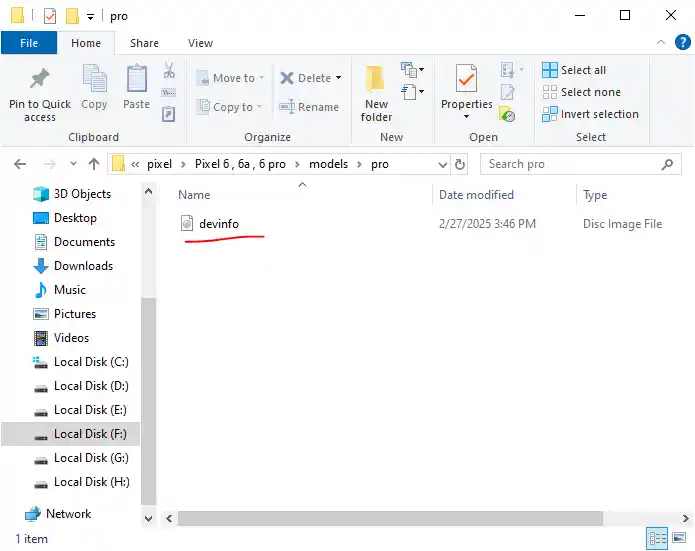
fastboot devices - Locate the generated
devinfo.imginside the tool’smodelsfolder (for example,models/6/devinfo.img). - Write the file to the active partition block:
fastboot flash devinfo devinfo.img - Confirm that the terminal returns an
OKAYstatus with execution time recorded.
4. Reboot and Verify Restored IMEI Status
After a recorded write, restart only if Fastboot reports no error, then test the complete device state.
- Issue the reboot command from your command prompt:
fastboot reboot - Allow the Pixel to complete its standard startup sequence.
- Open the Phone dialer app and dial:
*#06# - Verify that the IMEI dialog box displays the restored 15-digit identity matching your hardware tray instead of
000000000000000or blank lines. - Record baseband, factory identifier, SIM registration, calls, SMS, emergency-call availability, mobile data, Wi-Fi/Bluetooth identity, repeated cold boots, and any later update behavior. Do not call the repair permanent without a documented test matrix.
Video Demonstration
Review the complete workflow in this detailed fastboot and partition repair video guide:
Troubleshooting Common Issues
- Fastboot Device Not Detected: Check Windows Device Manager under “Android Phone”. If an exclamation mark appears, manually update the driver pointing to the Google USB Driver directory.
- Flashing Error
Command not allowed: The bootloader remains locked or OEM Unlocking was revoked. Re-verify the toggle under Developer Options. - Active Slot Issues: If the phone loops after flashing, verify whether partition slot A or slot B was active during fastboot execution using
fastboot getvar current-slot.