Google Maps Saved Places Missing: Account, Lists, and Cache Checks
Discovering that your carefully curated Google Maps saved places, custom travel itineraries, or starred favorite locations have vanished can be alarming. Whether preparing for a daily commute or traveling abroad, losing access to pinned addresses interrupts navigation routines.
Fortunately, saved places and custom lists are tied to your Google account and stored remotely, not solely on your device. Missing lists can result from several issues, including signing into a different Google account, intermittent sync delays, or local cache issues. By systematically checking your account state and forcing a refresh, you can often restore your missing locations.
Why Saved Places Fail to Display
Google Maps coordinates device data using automated cloud synchronization daemons. Several common factors can interrupt this pipeline:
| Sync Bottleneck | Underlying Technical Cause | Recommended Resolution |
|---|---|---|
| Token Desynchronization | Google account OAuth refresh tokens expire or desynchronize | Account sign-out and re-authentication |
| Local Cache Corruption | Damaged local SQLite database indexing in app storage | Clear application cache and app storage |
| Web & App Activity | Account settings affect history/timeline | Check if you are looking for past visits vs. manually saved lists |
| Delta Sync Hangs | App sync daemon fails to fetch updated revision markers | Force full rebuild via shared list subscription |
| Multi-Account Conflicts | Multiple Google profiles active on one device compete for active sync | Profile switching and session refresh |
Step-by-Step Restoration Guide
Follow these numbered steps sequentially to diagnose the sync failure and restore your saved locations.
1. Verify cloud data existence on Google Maps web
Before altering mobile configurations, confirm that your saved data remains intact on Google’s cloud servers.
Open a desktop or mobile web browser, navigate to the official Google Maps Web Portal, and sign into the same Google account used on your smartphone. Open Saved or Your places. If the lists appear there, they still exist for that signed-in account. That narrows the mobile symptom, but it does not prove a particular cache or synchronization-daemon cause.
2. Refresh Google account synchronization credentials
Stale authentication tokens frequently prevent Google Maps from pulling updated list schemas.
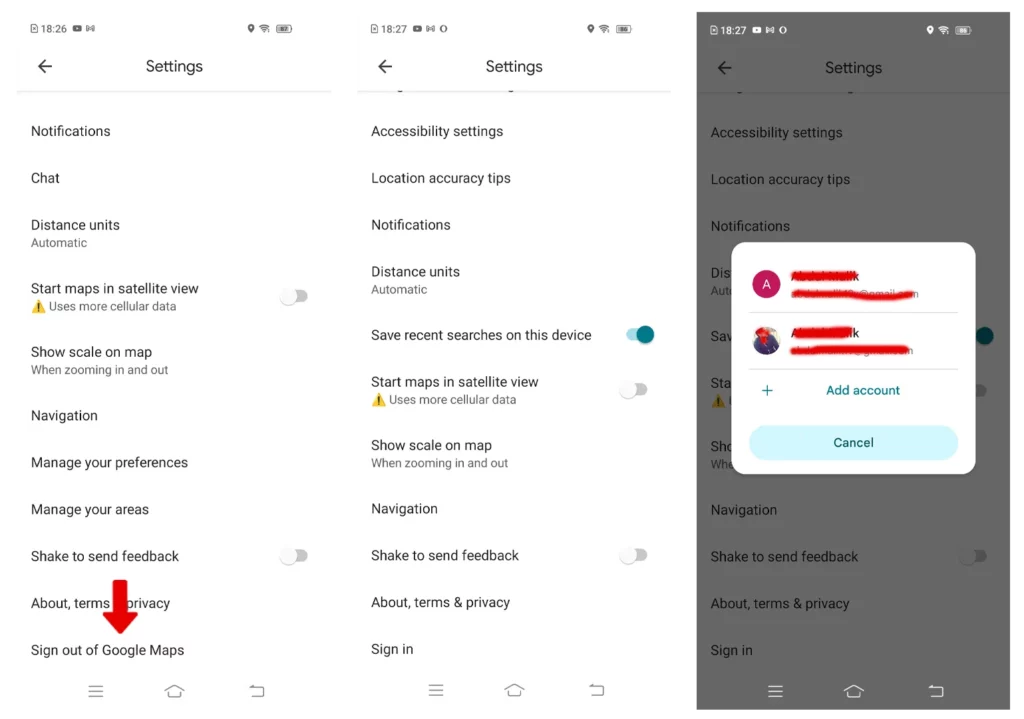
Refresh Google Account Sign-In Session in Google Maps
- In the Google Maps app, tap your Profile Avatar in the upper-right corner.
- On Android, tap the dropdown arrow beside your active account and select Use Maps without an account, wait 30 seconds, then tap your avatar again to re-select your primary Google profile.
- On iOS, tap your avatar, select Manage accounts on this device, and toggle your account off and on, or sign out and sign back in with your Google credentials.
- Navigate to the Saved tab to trigger a fresh credential handshake.
3. Clear local app cache and storage data
Local app state can contribute to display or synchronization problems, but it is not the only possible cause. Try cache clearing before storage clearing. Clearing app storage signs the app out locally and removes downloaded Offline Maps and other device-only state, so confirm the correct account and record offline downloads first.
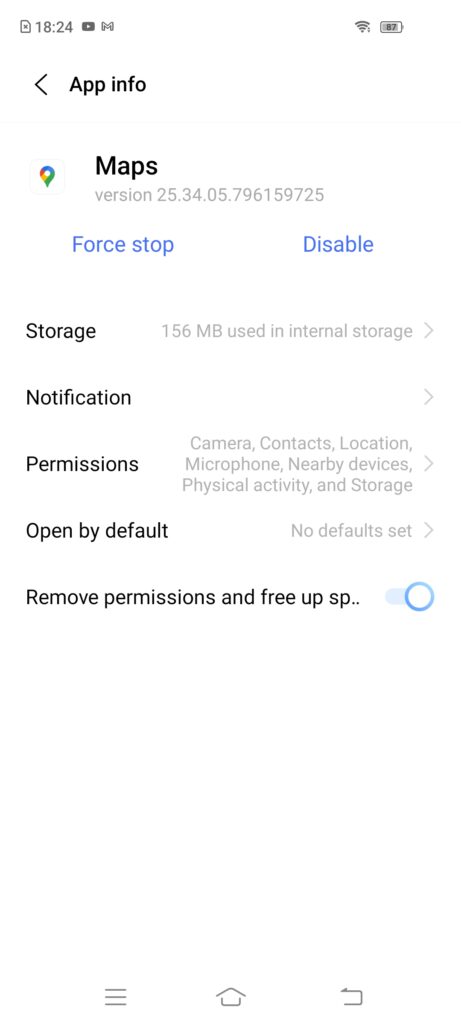
Access Google Maps Storage Management under Android System Settings
On Android:
- Open phone Settings > Apps > Maps.
- Tap Storage & cache.
- Tap Clear cache, followed by Clear storage (or Clear data).
- Reopen Google Maps, sign in with your primary account, and allow 60 seconds for cloud pins to repopulate.
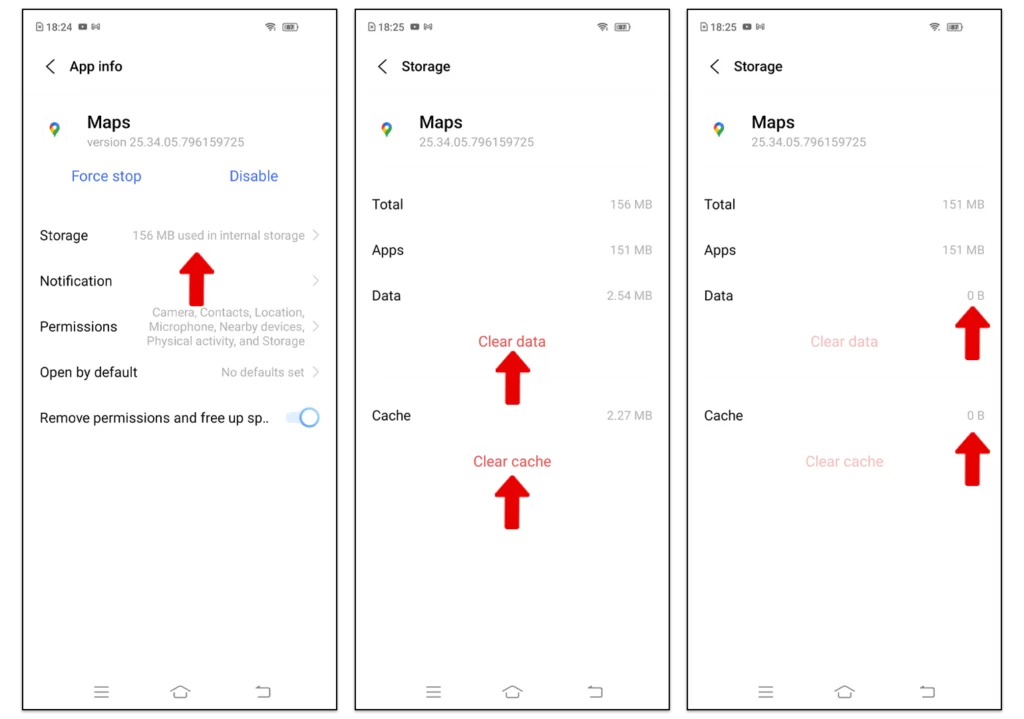
Clear Local Storage and Cache to Rebuild the Maps Database
On iOS: Delete the Google Maps application from your iPhone and reinstall the latest official release from the App Store.
4. Check Web and App Activity settings
Google’s current Maps help distinguishes lists you saved from history-derived and recently viewed content in the You tab. Web & App Activity affects history and personalized results; changing it is not a recovery switch for a manually saved list.
- Open Google Maps, tap your Profile Avatar, and select Settings.
- Tap Personal content.
- Scroll to the App history section and inspect Web & App Activity.
- If it indicates “Paused” or “Off” and you want Maps to remember places you visit automatically, tap it and select Turn on.
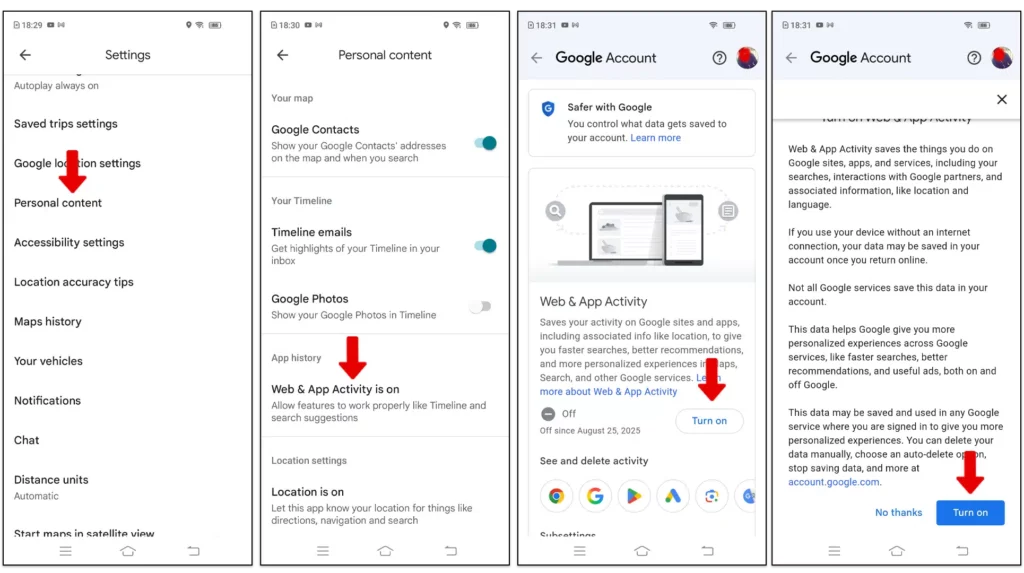
Enable Web & App Activity to Ensure Continuous List Synchronization
5. Test whether shared lists load
Opening a shared list can help distinguish a general list-rendering problem from one affecting only your own list. Google does not document this as a way to reset or rebuild all saved-place synchronization:
- Using a secondary Google account (or a family member’s account), open Google Maps, create a temporary list named “Sync Test”, and add one arbitrary location.
- Set the list permissions to Shared or Public, and copy the shareable link.
- Send the link to your primary device and open it inside your primary Google Maps profile.
- Tap Follow or Save. If the shared list loads while your own list does not, record that observation when reporting the issue; do not assume this operation repairs the account database.
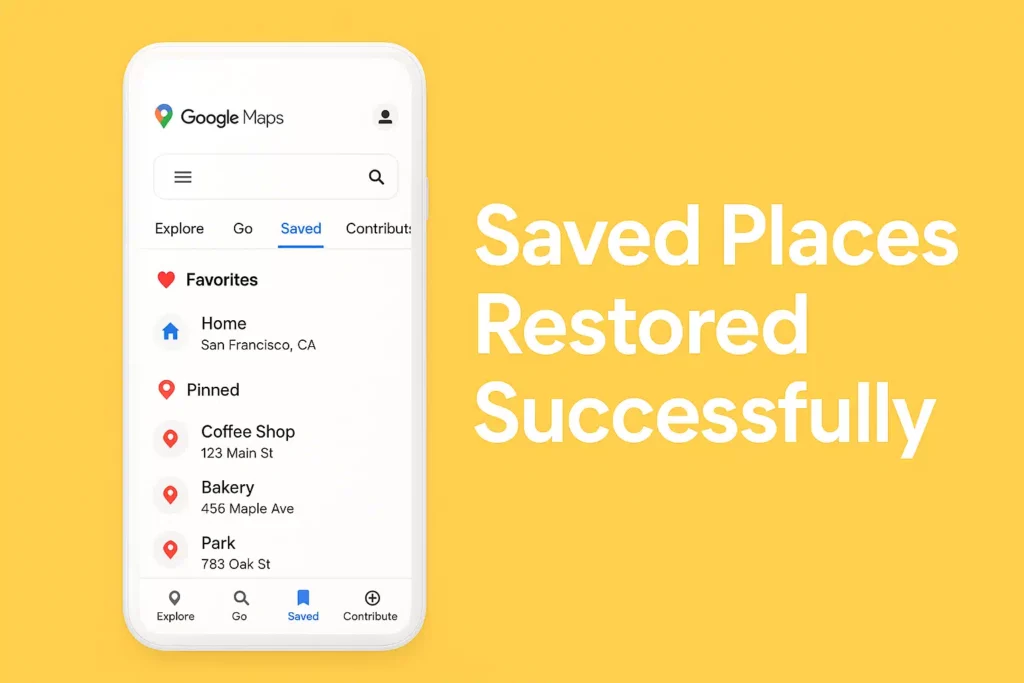
Google Maps Saved Places Restored Successfully
Long-Term Data Protection: Exporting via Google Takeout
To protect your locations against future cloud desynchronization or accidental modification, create periodic offline backups:
- Navigate to Google Takeout in any web browser.
- Click Deselect all, then scroll down and check Maps (your places) and Maps.
- Select your preferred archive format (
.zip) and click Create export. - Google will compile your saved places and starred locations into standard
.csvand.kmlgeographic data files suitable for local archiving or importing into third-party mapping software.