Spreadtrum & Unisoc (SPD) USB Drivers: Download and Windows Setup Guide
Spreadtrum and Unisoc (SPD) USB drivers enable a Windows PC to interface with mobile devices running Unisoc or legacy Spreadtrum processors. These drivers are necessary for low-level firmware recovery, flashing official .pac firmware archives using SPD Research Download Tool or SPD Upgrade Tool, and restoring calibration parameters.
When an SPD-powered phone is powered off and connected to a PC, it enters SCI USB2Serial mode. The driver establishes the serial COM port interface required for flashing software to communicate with the hardware before the Android operating system loads.
Understanding Unisoc processor families and driver types
Unisoc (formerly Spreadtrum Communications) manufactures system-on-chips found widely across entry-level and mid-range devices from brands including Infinix, Tecno, Itel, realme, Motorola, and Samsung.
| Processor category | Representative chipsets | Common device families | Primary driver requirement |
|---|---|---|---|
| Modern Unisoc (T-Series) | T606, T612, T616, T700, T820 | Infinix Smart series, Tecno Spark Go, realme C series | Spreadtrum Jungo / USB2Serial driver |
| Legacy Spreadtrum (SC-Series) | SC9863A, SC7731E, SC6531 | Itel A-series, Samsung Galaxy A03 Core, budget tablets | Spreadtrum SCI USB2Serial driver |
The driver package contains two primary components:
- Spreadtrum Jungo Driver: Typically used for newer Unisoc T-series processors to manage USB data endpoints.
- Spreadtrum SCI Driver: Provides virtual serial COM port emulation (
SCI USB2Serial) for legacy SC-series chipsets and direct firmware flashing routines.
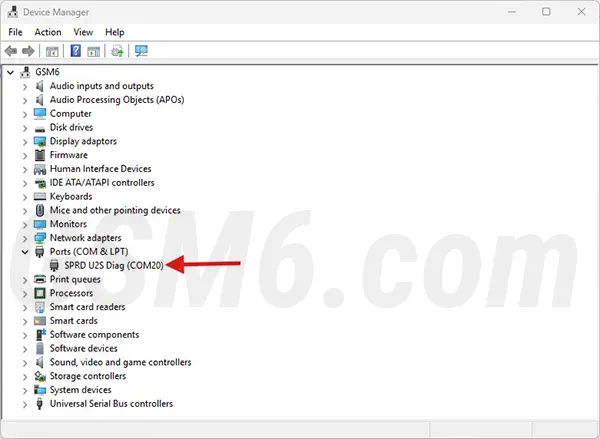
Spreadtrum SCI USB2Serial Driver (COM Port) displayed under Ports (COM & LPT) in Windows Device Manager.
Operating system compatibility and preparation
The archive labels itself v4.21.39.134 and contains legacy INF packages. This audit did not verify a Unisoc publisher signature or a complete Windows 7–11 compatibility matrix; match the INF to the device hardware ID and inspect its signature before installation.
Before beginning driver installation:
- Administrative access: Elevated user rights are required to install legacy hardware INF packages into the Windows DriverStore.
- Reliable USB connection: Use a high-quality data cable connected directly to a rear motherboard USB port on desktop computers.
- Close background synchronizers: Third-party mobile suites or emulator services can monopolize newly opened COM ports. Terminate these applications before flashing.
- Android SDK Platform-Tools: SPD drivers support pre-boot COM communication. For standard Android debugging and bootloader fastboot access, install Android SDK Platform-Tools.
Download SPD USB driver package
The links below mirror a third-party driver archive. Reachability does not establish its publisher, signature, version, or compatibility with a specific Unisoc boot mode.
| Specification | Detail |
|---|---|
| Package name | Spreadtrum / Unisoc SPD Driver Package |
| Driver version | v4.21.39.134 |
| Supported OS | Windows 11, 10, 8.1, 7 (32-bit & 64-bit) |
| File size | 8.24 MB |
| Format | ZIP Archive containing Jungo and SCI INF drivers |
| Direct download | Download SPD/Unisoc Driver v4.21.39.134 (R2 Storage) |
| Mirror download | Download SPD/Unisoc Driver Mirror (Google Drive) |
For devices using alternative chipsets, consult our MediaTek USB drivers guide and our Qualcomm USB drivers guide.
Install SPD USB drivers on Windows
Because the SPD driver package distributes INF files directly, install the driver through Device Manager using the Add Legacy Hardware wizard.
1. Extract the driver archive
Download the ZIP archive and extract its contents into a local folder on your computer. Keep the folder path accessible, such as on your Desktop or local drive root.
2. Open Device Manager
Press Win + X and choose Device Manager from the Windows power user menu. In Device Manager, click once on your computer name at the very top of the device list.
3. Launch Add legacy hardware wizard
With the top node highlighted, click Action in the menu bar and select Add legacy hardware. In the wizard window that appears, click Next, choose Install the hardware that I manually select from a list (Advanced), and click Next.
4. Install the INF driver
- Scroll down the hardware types list, select Show All Devices, and click Next.
- Click Have Disk…, then click Browse.
- Navigate to the extracted driver folder and select the appropriate INF file (such as
Spreadtrum_Jungo.inforSciU2S.infinside the architecture-specific folder). - Click OK, select the identified driver from the model list, and proceed through the installation prompts.
- Once the wizard finishes registering the driver, click Finish.
5. Verify SCI USB2Serial port
To verify driver functionality:
- Power off the Unisoc/Spreadtrum device completely.
- Press and hold the Volume Down key (or the device-specific boot key).
- Connect the phone to your PC via USB while holding the key.
- Expand Ports (COM & LPT) in Device Manager: an entry for
Spreadtrum SCI USB2SerialorSPRD USB2Serialshould appear with an assigned COM port number.
Troubleshooting SPD driver and connection errors
Device port disconnects after 2 to 3 seconds
Spreadtrum devices open SCI mode for a brief handshake window. If flashing software is not actively listening, the phone exits this mode and switches to battery charging. In SPD Research Download Tool or SPD Upgrade Tool:
- Load the firmware (
.pacfile) first. - Click the Start Downloading button in the software.
- Only then connect the powered-off device while holding the boot key.
Phone does not enter SCI mode
If connecting the phone triggers no device connection sound in Windows:
- Ensure the phone’s battery is charged to at least 40%. A completely flat battery may prevent the bootloader from initializing the USB interface.
- Try alternative boot keys: while most models use Volume Down, certain budget tablets use Volume Up or both volume buttons simultaneously.
Device Manager reports Code 10 or Code 28
- Code 28 (Driver not installed): The INF file was not successfully associated with the device. Re-run the manual Have Disk procedure and select the INF file matching your Windows bitness (x86 for 32-bit, x64 for 64-bit).
- Code 10 (Device cannot start): Code 10 often indicates a port collision with another USB serial utility or an unpowered front-panel port. Switch to a rear motherboard USB port and restart the computer.
Technical conclusion and references
A correctly matched, signed driver can make the intended Windows interface available. It does not prove that a flashing tool, firmware package, boot key, or write operation supports the connected device. For related documentation, refer to these resources: