Aftersales Tool V7: Infinix, Tecno & Itel IMEI Repair Guide
Aftersales Tool V7.2025.01.07 is circulated as a leaked service utility for restoring factory-assigned IMEI numbers on specific MTK and Spreadtrum devices. While often referred to generically as the “Carlcare IMEI Write Tool” for the Transsion family, this specific package is not a generic solution for all modern Infinix, Tecno, or Itel models.
Support for this specific V7 release is strictly bound to older firmware builds and legacy baseband architectures. It is designed to repair baseband or NVRAM calibration data corrupted following incomplete firmware updates or motherboard service. Note: Execution of this tool and an on-screen “Success” indicator do not guarantee a successful modem calibration outcome on all devices; many modern Transsion builds actively block this diagnostic method.
Restoring an IMEI must strictly be performed using the device’s original factory-assigned identifier found on the physical rear label or packaging. Modifying an IMEI to a foreign value or attempting to mask an illegitimate device is prohibited by law.
Understanding Meta Mode and Transsion chipset architecture
Unlike conventional Android debugging via ADB, writing baseband calibration parameters requires low-level modem access. Most Infinix, Tecno, and Itel devices run MediaTek (MTK) or Unisoc (Spreadtrum) processors:
| Chipset family | Architecture | Connection protocol | Typical driver required |
|---|---|---|---|
| MediaTek | Exact model/build support must be confirmed in the tool and a traceable service record | Meta Mode / PreLoader VCOM | MediaTek USB VCOM Drivers |
| Unisoc (Spreadtrum) | Exact model/build support must be confirmed in the tool and a traceable service record | SCI USB2Serial Mode | Spreadtrum Unisoc Drivers |
| Qualcomm | The circulated package is not evidence of support for a Snapdragon family | Diagnostic (Diag) Mode | Qualcomm USB Drivers |
In Meta Mode, the device powers on only its baseband modem and USB interface while leaving the Android operating system inactive. This allows the PC software to read and write NVRAM calibration blocks directly.

Interface shown by the circulated AftersalesTool V7 package; the screenshot does not authenticate its publisher.
Technical prerequisites and preparation
Before launching the utility, ensure your computer and device meet the necessary operational requirements:
- Original hardware identification: Locate the genuine IMEI number assigned to your device. This is printed on the barcode label beneath the battery (on removable models), on the back glass casing, or on the original retail packaging.
- Dedicated USB drivers: Install the driver matching your device chipset. For MediaTek devices, install MediaTek USB drivers.
- Administrative permissions: The software requires administrator privileges on Windows 11, 10, 8.1, or 7 to interact with USB COM ports.
- Stable USB connection: Connect the phone using a quality data cable directly to a rear motherboard USB port to prevent communication drops during NVRAM writing.
Download Aftersales Tool V7 package
The package below contains the standalone Aftersales Tool V7 suite, including the IMEIWriteTool executable, security plugin installers, and the feature code generator.
Provenance Warning: The hosted package below is provided via a third-party file host (MediaFire). A MediaFire landing page does not authenticate the release as an official OEM Carlcare package. Use this software at your own risk in a controlled diagnostic environment.
| Detail | Specification |
|---|---|
| Software name | Aftersales Tool V7.2025.01.07 |
| Target platforms | Windows 11, 10, 8.1, 7 (32-bit & 64-bit) |
| Advertised brand families | Infinix, Tecno, Itel; this is not a verified per-model support list |
| Archive file size | 200 MB |
| Archive password | gsm6.com |
| Download link | Download Aftersales Tool V7 (MediaFire) |
Step-by-step usage guide
Follow these instructions to configure the local security token and restore factory IMEI parameters.
1. Extract and launch the tool
Download the archive and extract its contents using the password gsm6.com. Navigate to the extracted folder, open the IMEIWriteTool directory, right-click IMEIWrite.exe, and select Run as administrator.
2. Install the security plugin
On first launch, the utility will prompt you to install the required security component. Click OK, proceed through the installer prompts, and click Finish once the plugin has been registered on your operating system.
3. Configure module settings with feature code
To authorize the IMEI write module locally:
- Open the
GetFeatureCodeexecutable to generate your unique workstation code. - Copy the generated string to your clipboard.
- Open
ModulesSetting.iniusing Notepad. - Paste the string into both the
Feature=andrToken=values, ensuring no leading or trailing whitespace is added. - Save the file and restart
IMEIWrite.exe. The application header should now reflect READY status.
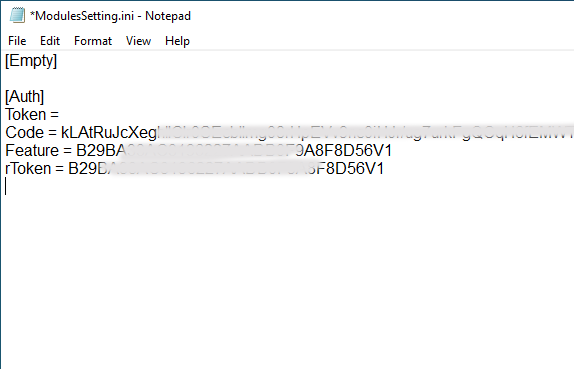
Configuring the local feature code and token inside ModulesSetting.ini.
4. Connect device in Meta Mode
- Power off the phone completely.
- Press and hold the Volume Up button (or Volume Down on select Transsion models).
- Connect the USB cable between the PC and phone while continuing to hold the key.
- Once Windows plays the USB connection chime and the tool detects the COM port in Meta Mode, release the button.
5. Enter original IMEI and write
- In the input fields, enter the original 15-digit IMEI numbers for SIM 1 and SIM 2 as documented on your device label.
- Click the Write button.
- The software will transmit the calibration data to the modem NVRAM. An on-screen Success indicator confirms that the tool completed its execution sequence, but does not guarantee the modem accepted the calibration.
- Disconnect the phone, power it on normally, and dial
*#06#to verify the restored identifiers. If the IMEI still displays as invalid or null, the device’s baseband security may require a different diagnostic approach or an authenticated OEM service account.
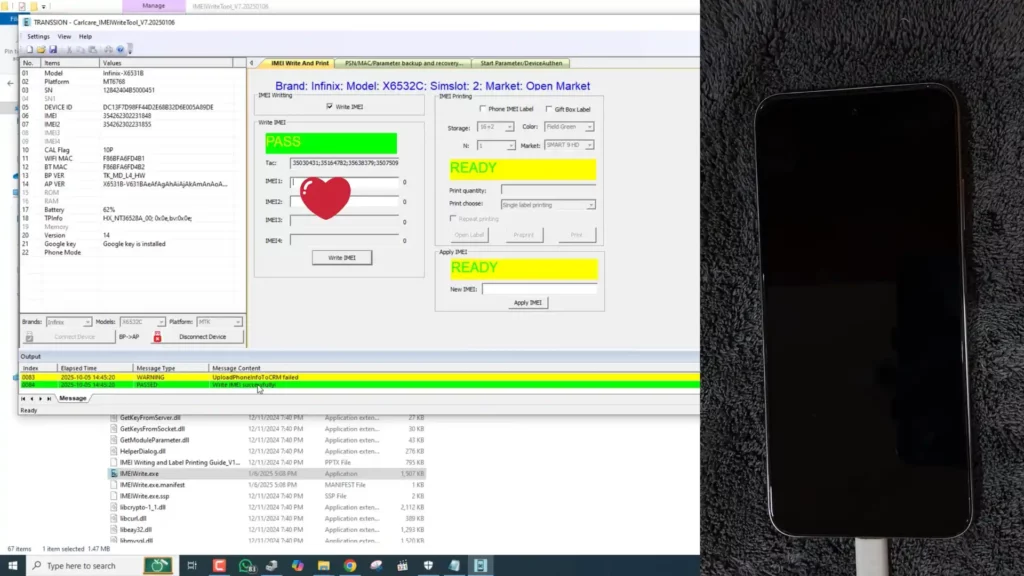
Successful IMEI restoration verification on an Infinix smartphone.
Troubleshooting common errors
Application displays “Not Ready” status
If the tool remains in a “Not Ready” state, the module initialization failed:
- Verify that
ModulesSetting.iniwas saved in ANSI or UTF-8 without BOM. - Ensure the
Feature=andrToken=lines contain identical codes fromGetFeatureCode.exe. - Close any background instances of
IMEIWrite.exein Windows Task Manager and restart the executable as administrator.
Device fails to connect in Meta Mode
If the phone powers on normally into Android or simply shows a battery charging icon:
- Check that the phone was completely powered down before connecting.
- Try alternative boot button combinations (Volume Down instead of Volume Up).
- Check Windows Device Manager under Ports (COM & LPT) to ensure the MediaTek VCOM driver is bound without error flags.
Video walkthroughs
Diagnostic demonstration on Infinix smartphone
The video below demonstrates connecting an Infinix smartphone and checking Meta Mode communication.
Setup and configuration walkthrough
The video below demonstrates extracting the archive, generating feature codes, and configuring ModulesSetting.ini.
Technical references and related tools
For additional chipset configurations and service guides: